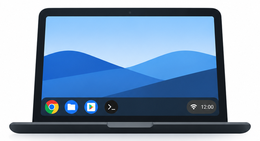
Title: [Guide & Port] Running gbOS86 on HP Laptops (Intel 12th Gen Alder Lake): Native NVMe Dual-Boot, Audio (SOF/ALC236), Bluetooth, & Fixing Error 0xc000007b
Hey everyone! 👋
I'm excited to share a complete port, reverse engineering dossier, and dual-boot guide for running gbOS86 (Android 14 desktop x86_64) alongside Windows 11 on the HP 15s-fr5009TU (powered by the 12th Gen Intel Core i3-1215U Alder Lake-U).
Everything has been packaged, tested, and published with scripts and patches in this repository:
👉 GitHub Repository: [aurtxx/gbos86-hp-laptop-port](https://github.com/aurtxx/gbos86-hp-laptop-port)
---
### 🚀 What's Working on HP Alder Lake Laptops
All testing was verified against the standard Googlebook OS build on a 512 GB WD PC SN740 NVMe SSD without risking or modifying Windows 11.
* CPU & Handover: Intel Core i3-1215U (6 Cores: 2P + 4E) booting cleanly via
* Hardware-Accelerated GPU: Intel Alder Lake-P GT1 UHD Graphics running on native
* Audio Playback & Mic: Intel Alder Lake Smart Sound Technology (SOF) DSP (
* Bluetooth: Realtek RTL8822CU initialized with firmware
* Touchpad: ELAN0718 I2C touchpad with automated IDC responsiveness tuning (
* Wi-Fi: Wireless interface
* Storage: Native NVMe SSD persistent storage (all apps, Wi-Fi networks, and accounts stay saved across reboots!).
---
### 🛠️ Key Technical Roadblocks Solved
#### 1. The Windows Boot Manager Error
If you tried adding gbOS86 to the standard Windows Boot Manager using
Why this happens: Windows Boot Manager (
The Fix: Clean up the invalid BCD entry using our included
1. Turn on your laptop and tap
2. Select "Boot From EFI File" ➔
---
#### 2. Native NVMe Dual-Boot Persistence (No More "Offline Setup" Loops!)
In stock builds,
In our repository, we updated
* Loop-mounted Metadata: Mounts a lightweight 64 MB
* Automated
*(Crucial:
* Safety Isolation: Hardcoded sector bounds strictly protect the 444 GB Windows partition (
---
### 📦 Quick Setup Instructions
1. Partition in Windows (
* Shrink
* Create Drive
* Create Drive
2. Deploy System Files:
* Copy the gbOS payload,
3. Boot into gbOS:
* Disable Secure Boot in BIOS (F10).
* Tap F9 on startup, select "Boot From EFI File" ➔
* On first boot, it formats the data partition and drops you straight into the hardware-accelerated Android desktop!
---
### 🤖 AI Agent Skill Included
For those pair-programming with AI coding assistants (like Antigravity / Gemini), the repo also includes an automated setup skill:
* Check out the
Full reverse engineering documentation and hardware logs are available in the [REA Super Report](https://github.com/aurtxx/gbos86-hp-laptop-port/blob/main/docs/REA_SUPER_REPORT.md).
Feel free to check out the repo, test it on your HP / Alder Lake machines, and let me know your thoughts!
Hey everyone! 👋
I'm excited to share a complete port, reverse engineering dossier, and dual-boot guide for running gbOS86 (Android 14 desktop x86_64) alongside Windows 11 on the HP 15s-fr5009TU (powered by the 12th Gen Intel Core i3-1215U Alder Lake-U).
Everything has been packaged, tested, and published with scripts and patches in this repository:
👉 GitHub Repository: [aurtxx/gbos86-hp-laptop-port](https://github.com/aurtxx/gbos86-hp-laptop-port)
---
### 🚀 What's Working on HP Alder Lake Laptops
All testing was verified against the standard Googlebook OS build on a 512 GB WD PC SN740 NVMe SSD without risking or modifying Windows 11.
* CPU & Handover: Intel Core i3-1215U (6 Cores: 2P + 4E) booting cleanly via
systemd-boot with options ibt=off drm.panic_screen=kmsg.* Hardware-Accelerated GPU: Intel Alder Lake-P GT1 UHD Graphics running on native
i915 DRM / KMS with hardware SurfaceFlinger acceleration at 1080p @ 60 Hz (tuned with DENSITY=180 in gbos.cfg).* Audio Playback & Mic: Intel Alder Lake Smart Sound Technology (SOF) DSP (
snd_sof_pci_intel_tgl) loaded with intel/sof/sof-adl.ri firmware and sof-hda-generic-2ch.tplg topology. Realtek ALC236 codec mapped to stereo speakers, 3.5mm headphone jack (0x21), and digital mic array (0x19).* Bluetooth: Realtek RTL8822CU initialized with firmware
rtl_bt/rtl8822cu_fw.bin. Android Bluetooth stack (BluetoothManagerService, A2DP, AVRCP) fully functional for headphones and peripherals.* Touchpad: ELAN0718 I2C touchpad with automated IDC responsiveness tuning (
Change_Timeout=0.02), eliminating touch flick latency.* Wi-Fi: Wireless interface
wlan0 active and unblocked.* Storage: Native NVMe SSD persistent storage (all apps, Wi-Fi networks, and accounts stay saved across reboots!).
---
### 🛠️ Key Technical Roadblocks Solved
#### 1. The Windows Boot Manager Error
0xc000007b TrapIf you tried adding gbOS86 to the standard Windows Boot Manager using
bcdedit /application bootapp or osloader, you probably ran into the blue screen crash:text
The application or operating system couldn't be loaded because a required file is missing or contains errors.
File: \EFI\BOOT\BOOTX64.EFI
Error code: 0xc000007bWhy this happens: Windows Boot Manager (
bootmgfw.efi) strictly enforces PE Subsystem 16 (IMAGE_SUBSYSTEM_WINDOWS_BOOT_APPLICATION). Third-party UEFI loaders (systemd-boot, Linux kernels) use PE Subsystem 10 (IMAGE_SUBSYSTEM_EFI_APPLICATION). When bootmgfw.efi validates the header, Subsystem 10 triggers an immediate NTSTATUS 0xC000007B (STATUS_INVALID_IMAGE_FORMAT).The Fix: Clean up the invalid BCD entry using our included
cleanup_broken_bcd.bat and boot directly through the motherboard's native UEFI menu:1. Turn on your laptop and tap
F9 repeatedly.2. Select "Boot From EFI File" ➔
GBOSSYS (Drive E:) ➔ EFI/BOOT/BOOTX64.EFI.---
#### 2. Native NVMe Dual-Boot Persistence (No More "Offline Setup" Loops!)
In stock builds,
verify_persistent_usb() in hook.sh strictly rejected internal NVMe storage (case "$STICKDISK" in nvme*) return 1;;), forcing gbOS86 to fall back to RAM (tmpfs), which wiped everything on reboot.In our repository, we updated
hook.sh with verify_persistent_storage():* Loop-mounted Metadata: Mounts a lightweight 64 MB
metadata.img on FAT32 GBOSSYS to /dev/loop7 for Android /metadata without needing an extra physical partition.* Automated
fs-verity Ext4 Formatting: Automatically formats the 24.9 GB data partition (/dev/nvme0n1p5) on first boot with:bash
mke2fs -F -q -t ext4 -m 0 -O verity -L GBOS_DATA /dev/nvme0n1p5
*(Crucial:
-O verity is required so Google Play Store updates don't fail with INSTALL_FAILED_BAD_SIGNATURE).** Safety Isolation: Hardcoded sector bounds strictly protect the 444 GB Windows partition (
C:) from ever being touched.---
### 📦 Quick Setup Instructions
1. Partition in Windows (
diskmgmt.msc):* Shrink
C: by ~33 GB.* Create Drive
E: (7.32 GB FAT32, labeled GBOSSYS).* Create Drive
F: (24.9 GB, labeled GBOS_DATA).2. Deploy System Files:
* Copy the gbOS payload,
super.img, EFI, and our patched hook.sh + metadata.img to E:\.3. Boot into gbOS:
* Disable Secure Boot in BIOS (F10).
* Tap F9 on startup, select "Boot From EFI File" ➔
GBOSSYS ➔ EFI/BOOT/BOOTX64.EFI.* On first boot, it formats the data partition and drops you straight into the hardware-accelerated Android desktop!
---
### 🤖 AI Agent Skill Included
For those pair-programming with AI coding assistants (like Antigravity / Gemini), the repo also includes an automated setup skill:
* Check out the
.agents/skills/gbos86-alderlake-dualboot/SKILL.md file in the repo.Full reverse engineering documentation and hardware logs are available in the [REA Super Report](https://github.com/aurtxx/gbos86-hp-laptop-port/blob/main/docs/REA_SUPER_REPORT.md).
Feel free to check out the repo, test it on your HP / Alder Lake machines, and let me know your thoughts!